 MyOcto
Install from the link you were sent
Open the link in your phone's browser. The phone may ask to allow installing from the browser; allow it once. Open MyOcto when it finishes.
Everything you need on day one: set the app up, keep your clients, build your circle of colleagues, and let a colleague cover when you are busy. Every picture is the real screen; the yellow dot shows where to tap.
Three things that never change. Your client list is kept on your phone, not on our servers. MyOcto never sends a message by itself: it writes the text and opens your own WhatsApp or SMS, and you press send. No money passes through the app: clients pay you directly.
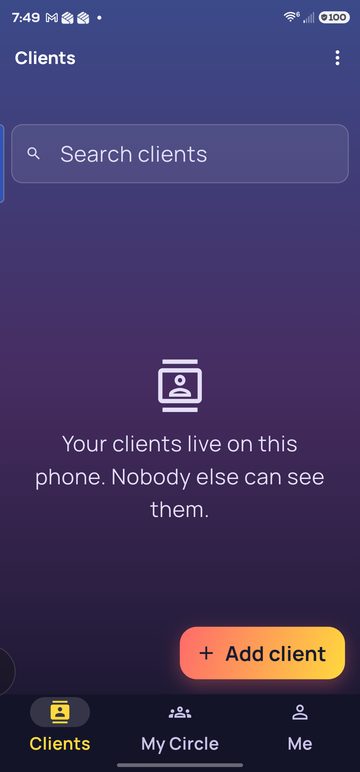
Your people. Each one has a page with ready-made messages, reminders and the button to ask a colleague to cover.
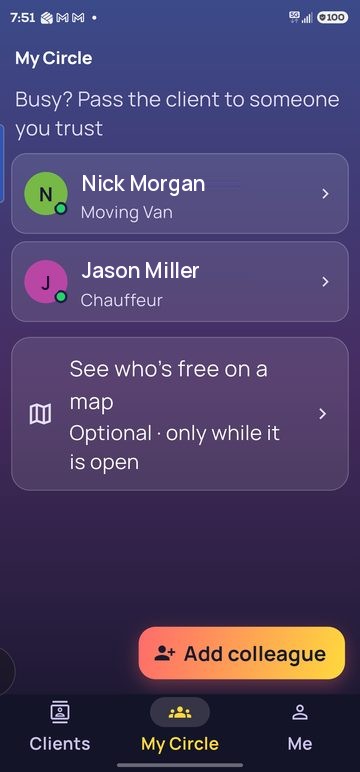
Colleagues you choose, plus a map that shows who is free right now.
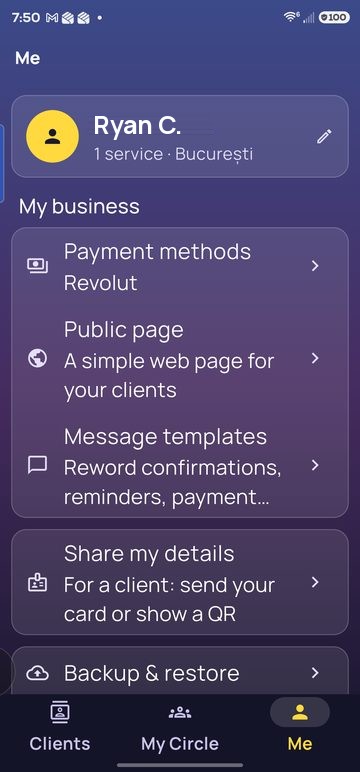
Your name, your trade, how clients pay you, and your settings.
Do these on the day you install. Afterwards the app just works.
Open the link in your phone's browser. The phone may ask to allow installing from the browser; allow it once. Open MyOcto when it finishes.
Type your email and tap Send code. Open your email, copy the 6-digit code, tap Verify. Read and tap Accept on the Terms. You stay signed in; the app asks again about once a month.
12Go to Me. Tap the pencil (1) and write your name, phone and a line about you (your car, your languages). Tap Save.
Then tap Payment methods (2).
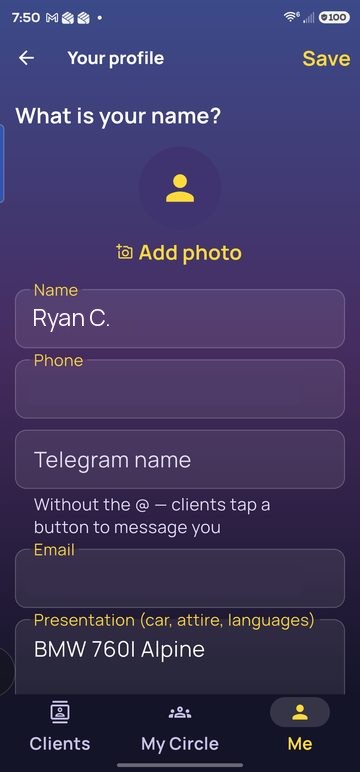
Your name is what colleagues and clients see. Phone and email are for the messages the app prepares. The presentation line goes on your card, for example the car you drive.
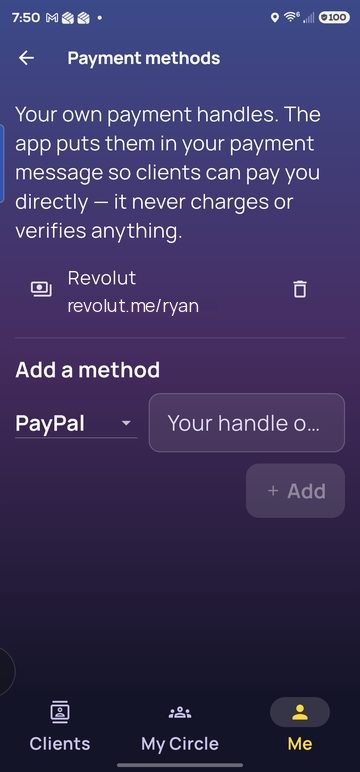
Pick Revolut, PayPal or another, type your handle or link, tap Add. The app puts it in your payment messages. It never charges anything itself.
 1
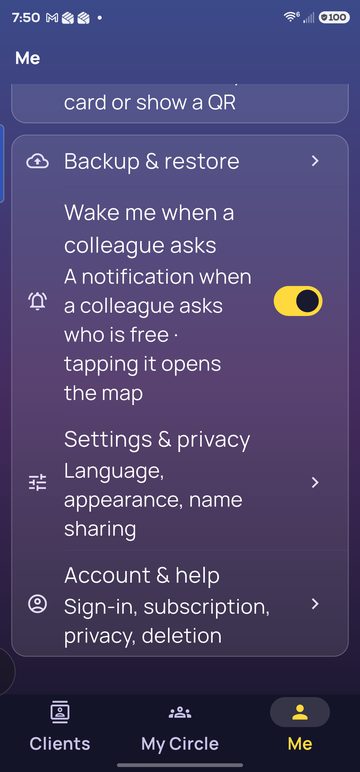
1Scroll down in Me and switch on Wake me when a colleague asks (1). When a colleague asks who is free, your phone shows a notification even if the app is closed.
Some phones block this to save battery. The wake-up checklist lists the settings to check, per brand.
Thirty seconds per client. Once saved, every message to them is one tap away.
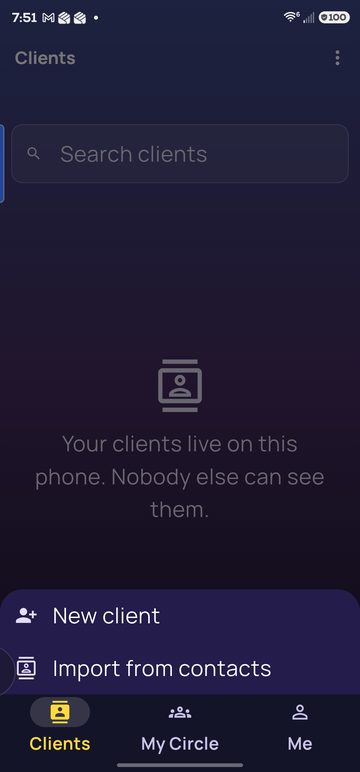
1On the Clients tab, tap the orange Add client button (1).
 1
1Tap New client (1) to type the details. If the person is already in your phone's contacts, tap Import from contacts instead and pick them.
 1
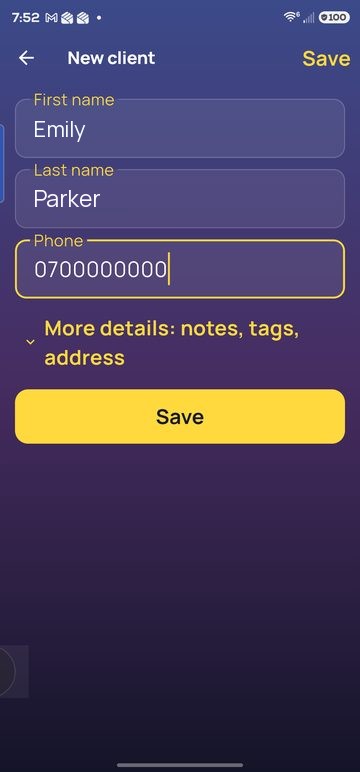
1First name, last name, phone. Tap More details for notes, tags or an address. Tap Save (1).
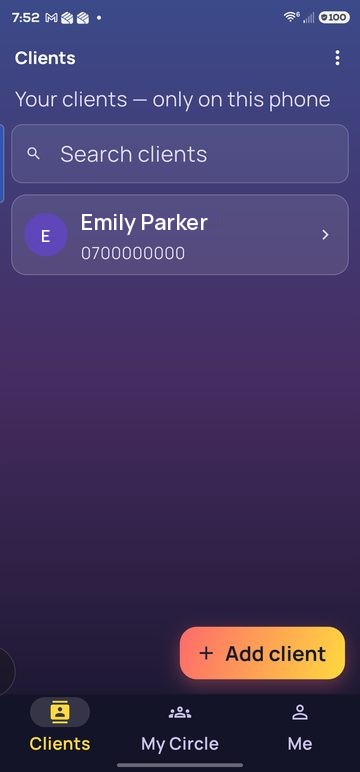
Tap a name to open their page. Use the search box when the list grows.
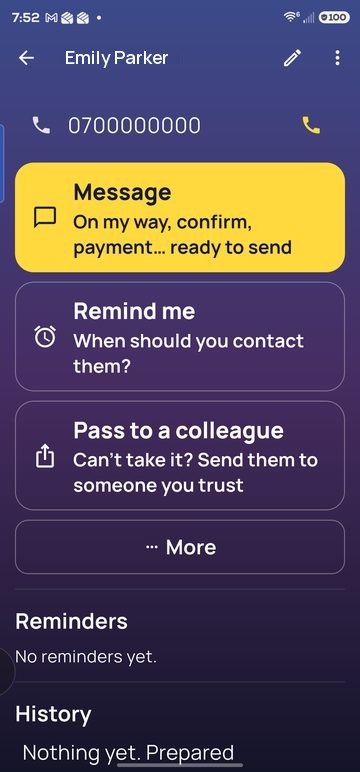
Message opens ready-made texts. Remind me sets a reminder to contact them. Pass to a colleague is lesson 4. The phone icon calls them.
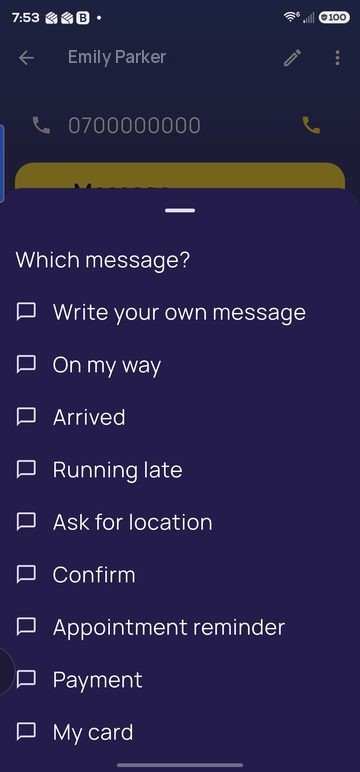
On my way, Running late, Confirm, Payment and more. Pick one, the text is ready in your WhatsApp or SMS, you press send. You can reword them under Me › Message templates.
A colleague is someone you choose to recommend to your clients. Add them by scanning each other's code; it takes a minute, face to face or over a video call.
1On the My Circle tab, tap Add colleague (1).
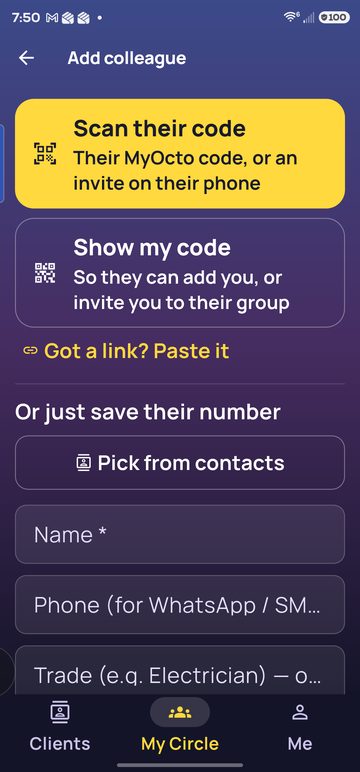 12
12Your colleague taps Show my code (2) on their phone. You tap Scan their code (1) and point your camera at their screen. Done: they appear in your list with a shield, which means the app verified their card.
Not in the same place? They can send you their card link; tap Got a link? Paste it.
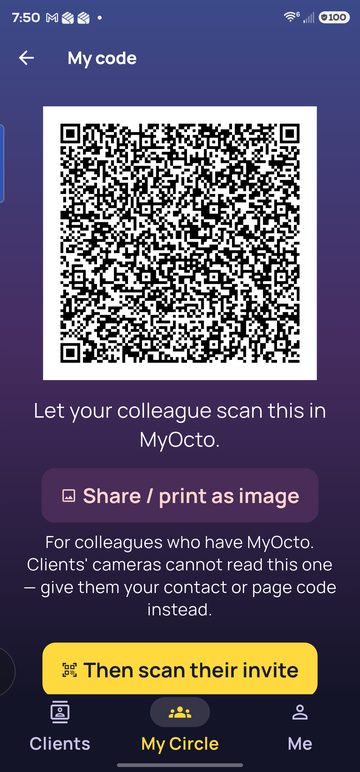
This is what colleagues scan to add you. Share / print as image sends it to them when you are apart. Clients cannot use this code; for clients use Me › Share my details.
Your map shows all your groups at once, and each group has one owner. Saving each other's cards is not enough on its own — to see each other on the map you both belong to the same group:
1. The owner taps Scan their code and scans the colleague's code. The colleague now appears in the owner's group.
2. An invite appears on the owner's phone. Next to each other: the colleague taps Scan their code again and scans it. Far apart: the owner taps Send on WhatsApp to …, WhatsApp opens on the colleague's number with the link, the owner sends it, and the colleague taps the link on that same phone and taps Join.
3. You both open My Circle › See who's free on a map. While the map is open you share your availability with every group you are in — one map, all your groups — and you see each other. The list button on the map shows each group on its own: whether it is live, its members, and where to rename or leave it.
Lost the invite? Until a colleague has been seen live on your map, their row says Not seen on this map yet. Open them and tap Show the invite again; the group is already chosen.
One phone is one colleague. An invite is made for the phone whose code was scanned and opens only there. A colleague with two phones is two colleagues: scan each phone's code and send each its own invite.
Just a phone number is also fine. Under Or just save their number you can add a colleague with name, phone and trade only. You can still call them and recommend them to your clients by WhatsApp; they just will not be on your map.
You keep the client, your colleague does the work, the client pays you. The app writes all three messages; you only press send.
 1
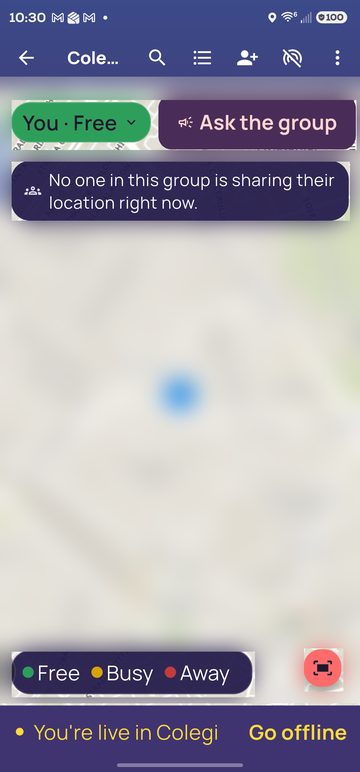
1My Circle › See who's free on a map. Tap Ask the group (1) — it asks every group you are in. Colleagues the question reaches answer Free, Busy or Away, usually within a minute or two. A colleague shows on your map only while they are online and sharing where they are. Nobody is assigned anything: you choose whom to call.
A small card under your availability lists the answers as they come in. The question lasts three minutes; then the card says Ask over and goes away by itself a few seconds later, so the map is clear once your colleagues are on it. Tap the card's ✕ to clear it sooner. If the card says ask again or wait a moment, it stays until you do.
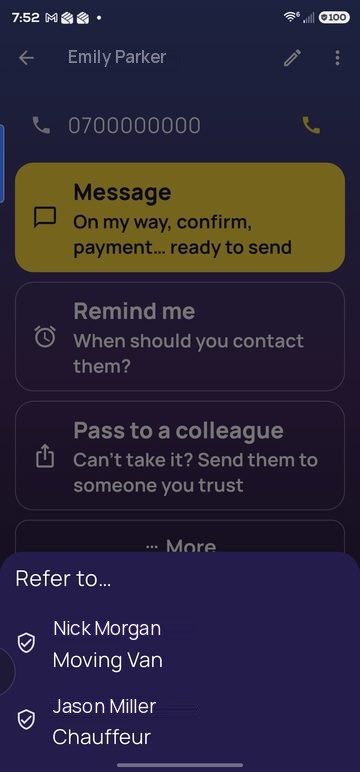
1On the Clients tab open the client, then tap Pass to a colleague (1).
 1
1Tap the colleague who said they are free (1).
 1
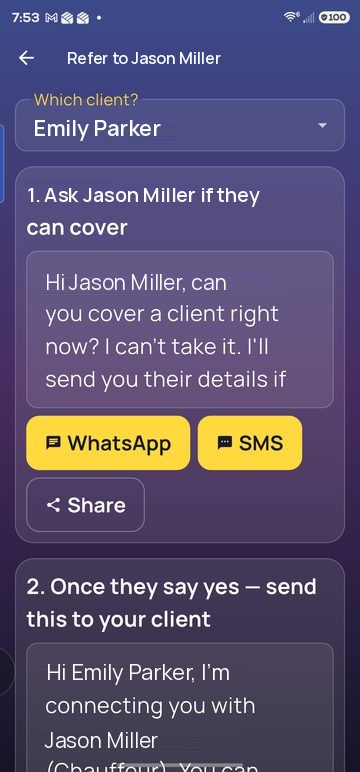
1The text is ready. Tap WhatsApp (1) or SMS; your own app opens with the message; press send. Wait for their yes.
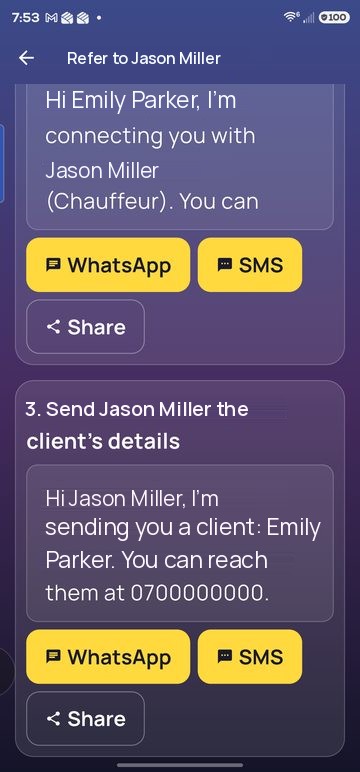
Once they said yes, send 2 to your client: it introduces the colleague and says how to pay you. Then send 3 to the colleague: the client's name and number. Both are one tap on WhatsApp or SMS.
 1
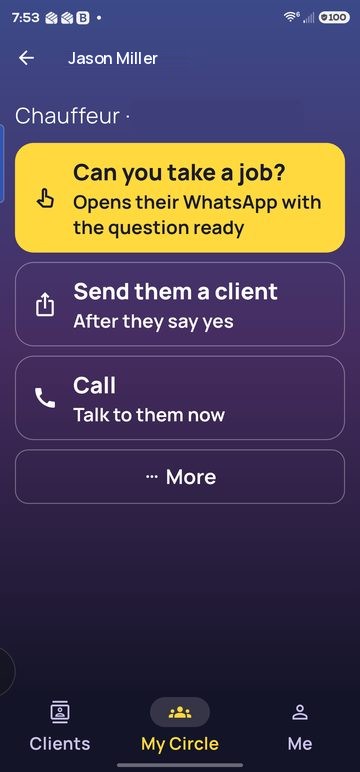
1In My Circle open the colleague: Can you take a job? (1) opens their WhatsApp with the question ready, and Send them a client does message 3. Call rings them.
Who pays whom. The client pays you, with the payment link from your profile. You settle with your colleague between yourselves, as you always did. The app reminds you to add your payment link if it is missing.